---
title: Setting the T channel on OCD CM/CW
description: Setting the T channel on OCD CM/CW
---
[Skip to content](https://hub.rivertrace.com/knowledge/setting-the-t-channel-on-ocd-cm/cw#main-content)
English
Show submenu for translations
[Submit a request](https://hub.rivertrace.com/knowledge/kb-tickets/new)
[](https://www.rivertrace.com)
Open main navigation
Close main navigation
- English
Show submenu for translations
- [Submit a request](https://hub.rivertrace.com/knowledge/kb-tickets/new)
- [Cant find what you need? Contact our remote support team.](mailto:remotesupport@rivertrace.com)
[Cant find what you need? Contact our remote support team.](mailto:remotesupport@rivertrace.com)
How can we help you?
- There are no suggestions because the search field is empty.
1. [Knowledge Base](https://hub.rivertrace.com/knowledge)
2. [OCD CM](https://hub.rivertrace.com/knowledge/ocd-cm)
# Setting the T channel on OCD CM/CW
## This will guide you on how to set the T-channel on a CM or CW unit which can alleviate some faults that may occur.
1. **Power up the monitor**
Ensuring the monitor has the correct mains jumper settings and the correctly rated supply is connected to the **Live, Earth** and **Neutral** terminals, turn the monitor ‘on’.
2. **Entering the Engineering Functions (see diagram for details)**
To enter the Engineering Functions menu, a combination of keys need to be pressed. First, the **SECRET KEY** must be depressed with the **SET/ZERO KEY** and held for a period of no more than 1 second. The **DOWN KEY** must then be pressed within 3 seconds of this action. If the operation is successful the display will show **EF** and all display LED’s will be on, otherwise the display will remain unchanged.
3. **Ensure that the measuring cell is filled with clean water.**
For adjusting the TC Value it is critical that clean, debris, oil and air free water is passing the measuring cell. If your readings are erratic, this indicates that air or other contaminants are present within the sample.
4. **Setting the T Channel value on the display (see diagram for details)**
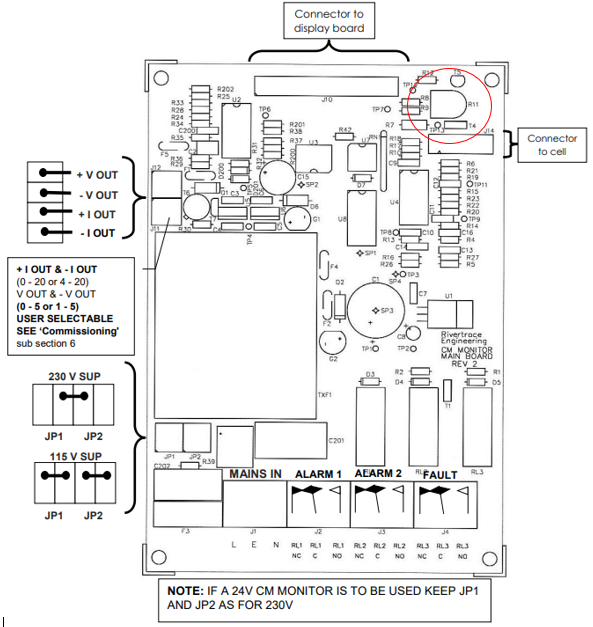
Using the **UP** and **DOWN** keys select the T channel **(TC** on the display) and press the **SET/ZERO KEY** to view. The display should read between **AE** and **B2,** if not adjustment can be made via the variable resistor – **R11** on the main board (See circled on PCB diagram). Once this is complete press the **SET/ZERO** key again. The display should now show **TC** Leave the monitor until the display changes to EF then press the **SET/ZERO** key to enter normal monitor mode.
**Tip...**
If your readings are erratic, it is possible to eliminate contaminants within the fresh water supply by plugging the inlet and outlet of the measuring cell and filling the cell with bottled drinking water. The cell cap must be replaced once filled to prevent ambient light from entering the cell.
If erratic readings stabilize whilst bottled drinking water is within the cell, your fresh water supply will need flushing for a minimum of 30 minutes and all pipework checked for potential points of air ingress.
**For further guidance regarding erratic TC values or irregular error codes, please look[here.](https://hub.rivertrace.com/knowledge/checking-ribbon-cable-connections)**
**OCD CM / CW user interface**
The Secret button is not visibly marked on the membrane and can only be identified by feeling the indentation in the position highlighted below.
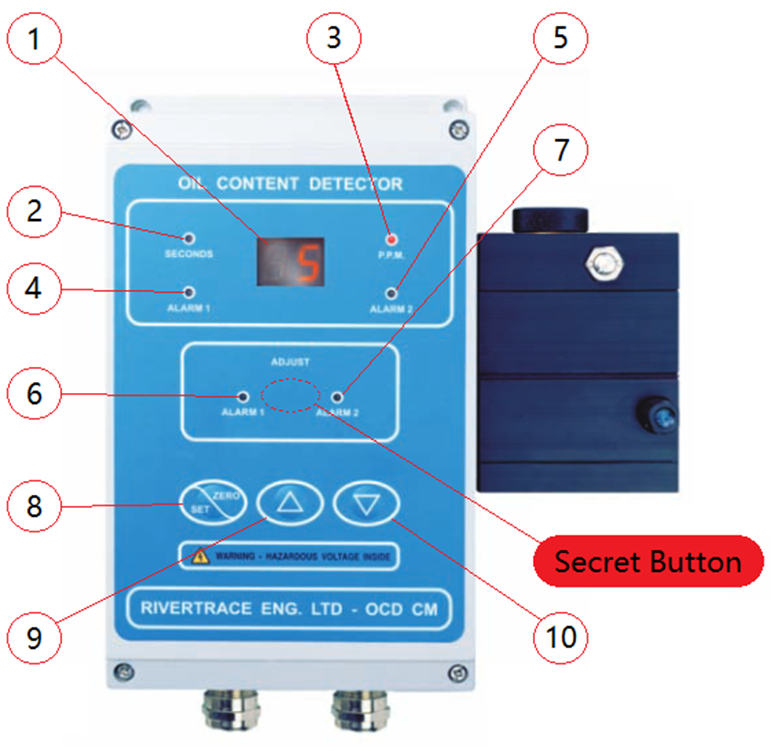
| ITEM No. | DESCRIPTION | ITEM No. | DESCRIPTION |
| --- | --- | --- | --- |
| 1 | PPM DISPLAY | 6 | ALARM 1 AJUST LED |
| 2 | SECONDS LED | 7 | ALARM 2 AJUST LED |
| 3 | PPM LED | 8 | SET/ZERO KEY |
| 4 | ALARM 1 INDICATION LED | 9 | UP KEY |
| 5 | ALARM 2 INDICATION LED | 10 | DOWN KEY |
**Alphanumeric Scale**
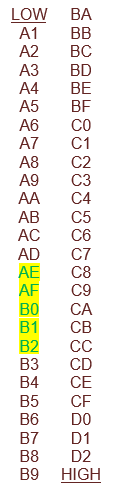
The OCD CM uses an alphanumeric scale to show the user how intense the LED is being set, whilst the R11 pot is adjusted. The higher up the scale, the brighter the light and vice versa. It is critical that the tC Value is set between AE and B2 whilst fresh water is trapped inside the measuring cell.
The acceptable range is highlighted below with B0 being the optimum value.
- [Smart ODME](https://hub.rivertrace.com/knowledge/smart-odme)
- [SmartBilge](https://hub.rivertrace.com/knowledge/smartbilge)
- [Smart Bilge+ Plus](https://hub.rivertrace.com/knowledge/smart-bilge-plus)
- [Smart PFM](https://hub.rivertrace.com/knowledge/smart-pfm)
- [OCD CW](https://hub.rivertrace.com/knowledge/ocd-cw)
- [Smart ESM](https://hub.rivertrace.com/knowledge/smart-esm)
- [OCD Xtra](https://hub.rivertrace.com/knowledge/ocd-xtra)
- [Smart 50M](https://hub.rivertrace.com/knowledge/smart-50m)
- [Smart Turbidity](https://hub.rivertrace.com/knowledge/smart-turbidity)
- [Sample conditions and general techniques](https://hub.rivertrace.com/knowledge/sample-conditions-and-general-techniques)
- [General FAQs](https://hub.rivertrace.com/knowledge/general-faqs)
- [Key MEPC Regulations and Rivertrace Solutions](https://hub.rivertrace.com/knowledge/key-mepc-regulations-and-rivertrace-solutions)
- [OCD CM](https://hub.rivertrace.com/knowledge/ocd-cm)
[](https://www.rivertrace.com)
Rivertrace Product, Regulation and Technical Support Knowledge Base
Copyright © 2025, Rivertrace Limited